

Agreements
Find and track your agreements
See every agreement in the workspace, what state each one is in and who it waits on. Find any agreement, template or envelope by name in the Library.
For everyone on the team
Agreements lists everything your workspace has sent or is preparing, with whatever needs you at the top.
The groups
At the top of Agreements, choose a group:
- Needs you: everything waiting on you: your turn to sign, an invitation that bounced or failed, a correction, a deadline coming up or passed, and your drafts. It counts the same as Needs you on Home.
- Waiting on others: out for signature, waiting on someone else.
- Drafts: ready to send.
- Sealed: signed and sealed.
- Closed: declined, voided or expired.
- All: every agreement.
To narrow the list further, choose Status. Choose Needs correction, Expired, Declined or Voided. Choose Show all agreements to clear it.
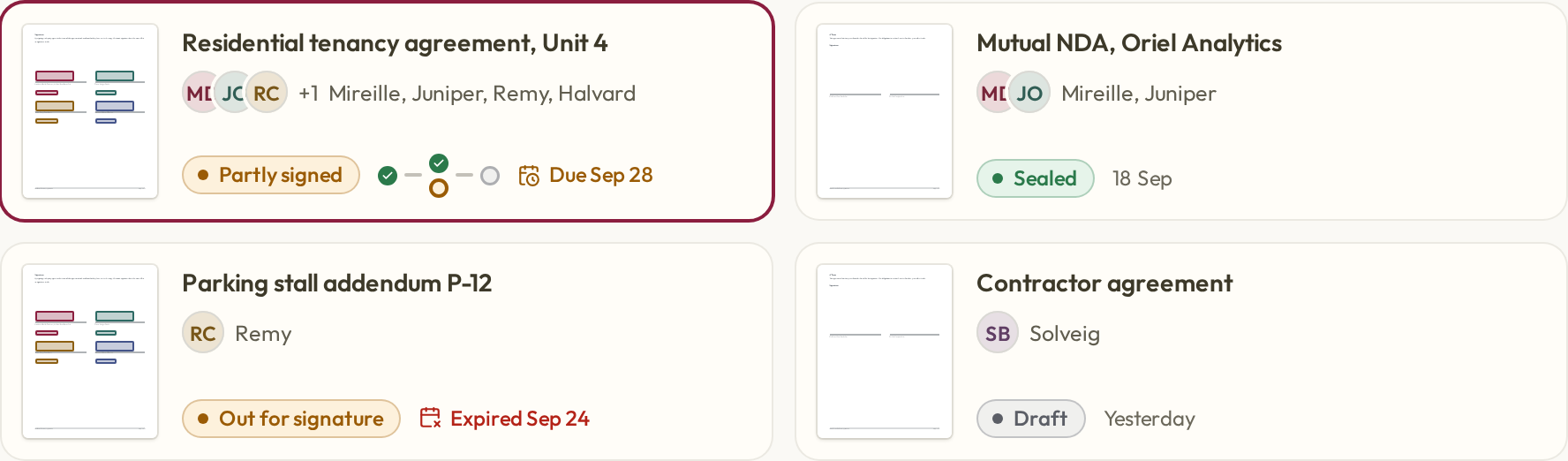
What each status means
- Draft: not sent yet.
- Out for signature: sent, waiting on signatures.
- Partly signed: some people have signed.
- Needs correction: an approver asked for changes. Correct it or void it.
- Sealing: everyone has signed. Maple eSign is sealing the PDF.
- Sealed: everyone has signed. The sealed PDF and its certificate are ready.
- Declined: someone declined to sign.
- Voided: it was withdrawn. Its signing links no longer work.
- Expired: its signing links stopped working. Not everyone had signed at expiry.
Each row also shows the Signing route, who is next (for example "Ana to sign" or "You to countersign") and when it is due.
Find an agreement
- Type in Search agreements by title or external ID.
- Choose Cards, Board or Table above the list. Your choice is remembered.
Act from the list
Point at a row, or open its menu, to:
- Remind the person whose turn it is. They get a fresh signing link by email. See Resend a signing link.
- Copy link: copy the address of the agreement's page, to share with your team.
- Correct it (owners and admins), or Copy into a new agreement.
- Pin to Home.
- It is sealed? Choose Download. Pick the files in Download files, as on the agreement's page.
- You are an owner or admin? Choose Void.
To download several at once, select the sealed agreements. Choose Download 3 agreements (the button counts them). Pick the files. They save in one .zip file, with a folder for each agreement. Only sealed agreements can be downloaded together.
Deleted agreements
Owners and admins see Deleted at the top of Agreements, beside Refresh. A deleted agreement waits there for 14 days. Restore brings it back to Agreements. After that it leaves your account. The sealed record, its certificate and the signers' copies are never erased.
Search the Library
Library finds every agreement, template and envelope in this workspace in one search.
- In the sidebar, choose Library.
- Type a name, or words from inside an agreement. Press Enter or choose Search. Every match you can open shows, newest first. A match inside a document says Found in the text.
- To see one kind of item, choose Filters. Choose a Content type (Agreements, Templates or Envelopes) and a Status. Choose Show results. With no name typed, you see everything these filters allow.
Envelopes
An agreement sent with several PDFs is an envelope. Its page shows the Document package (which recipients can see each document), the Recipients in signing order with their Delivery, and the Envelope details: created, expiry and reminders. Choose Open document to act on one of its documents, for example to retry an email.