

Signing
Sign an agreement
Open the signing link from your email. Fill in your fields. Consent to sign electronically. Sign the agreement. You do not need a Maple eSign account.
For signers
Someone has sent you an agreement with Maple eSign? You get an email. Its button says Review and sign. You sign in your browser, on a computer or a phone. You do not need an account.
Open the agreement
- In the email, choose Review and sign. The button does not work? Paste the link under it into your browser.
- The page asks for an access code? See Enter an access code.
- The top of the page says who sent it, how many pages it has, how many fields you must fill in, and the name you sign as.
- To read the page in the other language, choose EN or FR at the top.
The link is yours alone. The page calls it Your personal, secure signing link. Do not forward it.
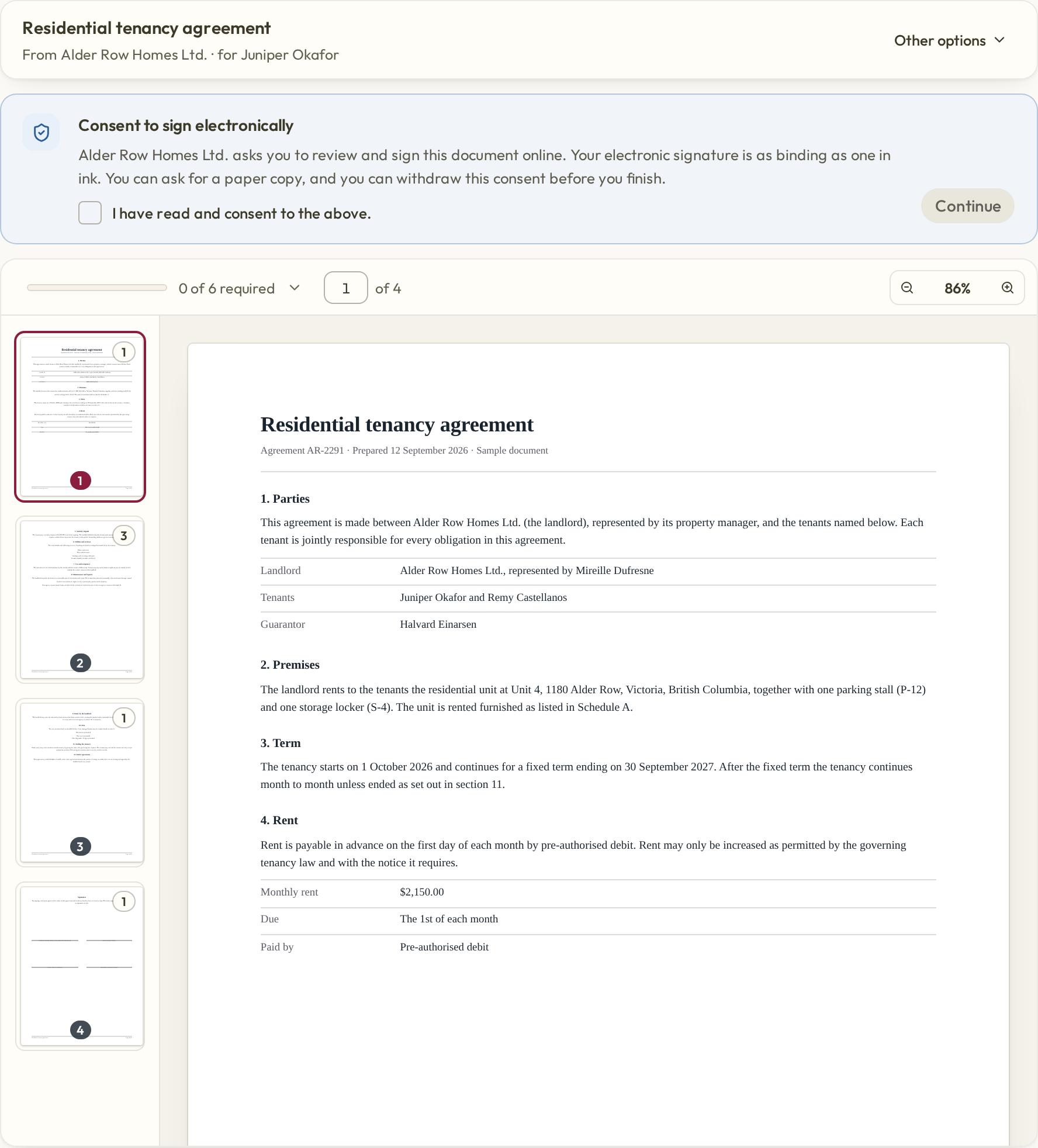
Fill in your fields
- Choose Start. The page takes you to your first field. After each one, choose Next.
- The bar at the bottom counts the required fields you have done, for example 2 / 5 required. Fields you may skip say Optional.
- On a computer, the list beside the document (Your fields) shows each field as Done, Next, Needs a fix or To do. Choose a field to go to it. On a phone, tap the count in the bar to open the same list.
- Some fields fill themselves in. The date you sign says Added automatically. A calculated value says Calculated automatically.
- A value is not in the form the field needs? The field tells you, for example "Enter a postal code, like K1A 0B1." Fix it to continue.
- The sender asks for a file? Choose Upload file on that field. Pick the file.
Good to know:
- The page says some of what you enter stays private? Only the sender's team sees those values. Others and the signed PDF show ******.
- Before signing, what you type is kept on this device. Your connection drops? The page says You are offline. Reconnect. Carry on. You have not signed? Nothing is sent.
- Your answers change which fields the document needs? The page says so. Check the fields again. Sign.
Add your signature or initials
- Choose a signature field (Sign). The Add your signature window opens.
- Choose how to make your mark:
- Type: type your name as you sign it.
- Draw: sign with your finger, your mouse or your trackpad. Clear starts again.
- Upload: choose a PNG image of your signature.
- Choose Use this signature. This is the mark that goes on the document where you sign.
- Initials work the same way in the Add your initials window. Use 1 to 4 letters. Maple eSign suggests them from your name. You sign with other initials? Change them. Then choose Use these initials.
Consent and sign
- Every required field is done? Choose Review and sign. The page takes you to Consent to sign electronically, after the last page.
- Read the consent. Tick I have read and consent to the above.
- Choose Adopt & Sign.
Others still have to sign? You see Your part is done. Everyone has signed? The agreement is sealed. You get an email at that point. The sender chose to give you the copy themselves? The email does not carry your copy. Otherwise, it carries your copy. You were the last to sign? You see You are all done. You can choose View completed document. See Download your signed copy.
If you are asked to approve
Some people approve rather than sign. Their email button says Review and approve. The page says Needs your approval. There is nothing to fill in.
- Read the document.
- Choose Approve.
- Or choose Request changes. In Ask for changes?, you can add a reason. Choose Request changes. The sender has not reviewed your request? The agreement stays on hold.
If you only need to read it
- The page says For you to read? There is nothing to sign or fill in. Opening the page is recorded. The sender knows you received it.
- The page says You have a copy? The sender sent it for your records. You do not need to sign anything.
If someone else should sign
- Open Other options under the document. On a computer, it is under Details and other options beside the document.
- Under Ask someone else to sign, enter Their full name and Their email.
- You can add a Note for the record (optional). Choose Send it to them.
- They get their own link to sign. Your link stops working. The change is kept in the agreement's history.
The page says Passing this on is not available for this agreement. Ask the sender instead in that case.
If the link went to a group
Some agreements go to a shared group. The page asks who is signing for the group.
- Choose your name.
- Choose Sign as your name. The agreement records who signed.
- Sign as above.
Your choice is recorded as your own statement. Maple eSign does not check it against an ID. The page says Group document claimed? Someone in your group already took it. Nothing is needed from you.
Questions
Questions about the agreement itself go to the sender. For trouble with signing, write to support@mapleesign.ca.